Android captive portal login: Sign in and fix failures
Published
You're standing in a hotel lobby, your phone says Connected, and nothing loads. No login page, no error you can act on, just apps spinning while the WiFi icon carries a small warning. That's the Android captive portal login doing its job badly, or the network answering Android's checks in a way that leaves the phone stuck between connected and online.
The fix is rarely random tapping. Android follows a clear detection state machine, and once you know which state you're in, you know what to tap, what setting to change, or whether the fault sits with the venue. I would start with the system prompt, then work outward to the browser, the privacy settings, and only then the portal design itself.
Table of Contents
- Sign In to a Captive Portal on Android in Under a Minute
- How Android Decides Whether a Network Needs Sign-In
- Fix Sign-In Failures on Your Own Phone
- Known Issues With Captive Portal Detection
- Kiosk and Managed Android Devices
- Choose a Portal Design That Works on Android
Sign In to a Captive Portal on Android in Under a Minute
Reach for the Sign in to network notification before you reach for Chrome. Android opens it in its own login view, tracks what you choose, and retests the network when you finish. A browser tab you open yourself gets none of that handling, which is why people who skip the prompt so often end up with a signed-in page and a phone that still insists there is no internet.
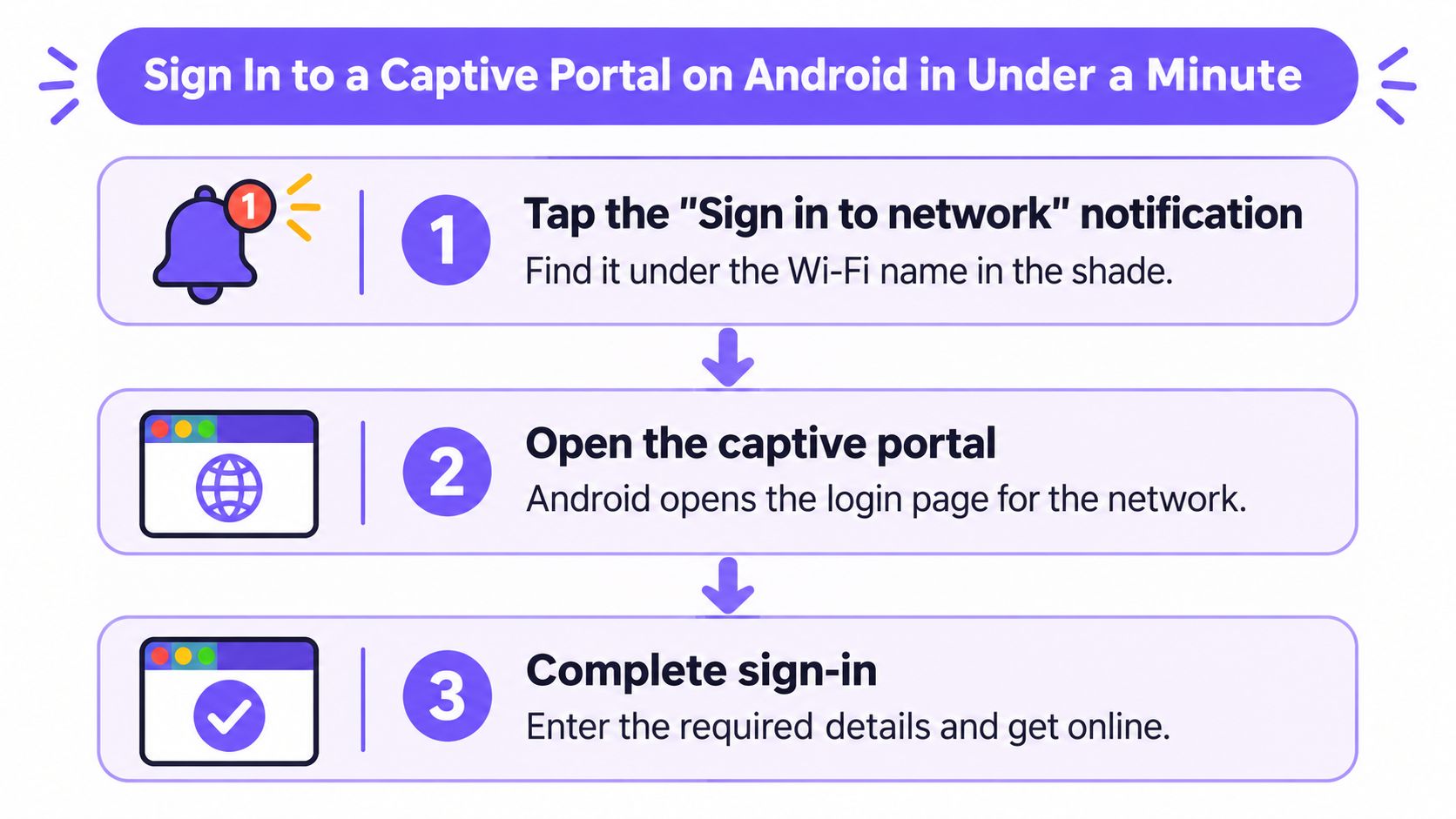
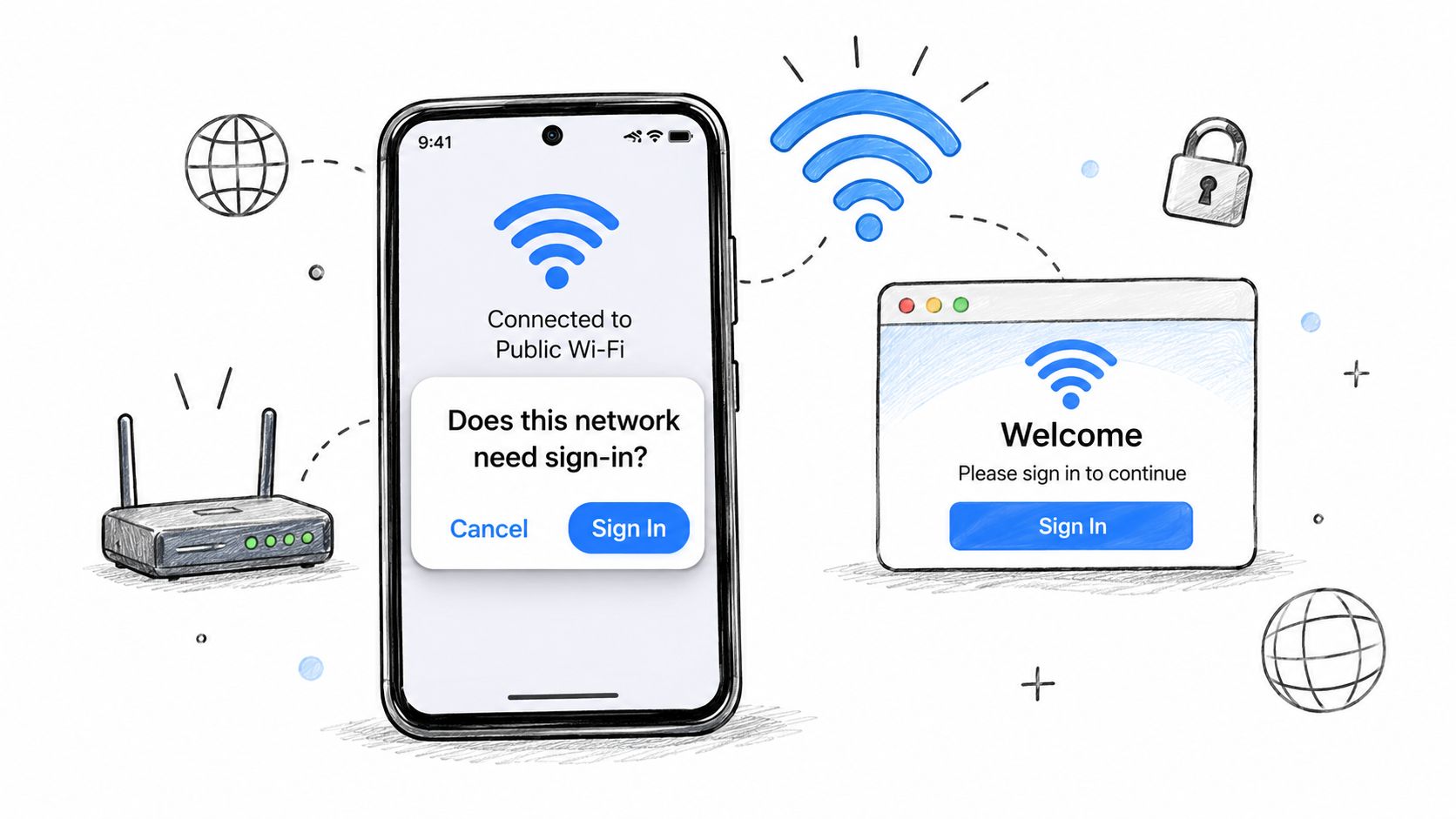
- Tap the Sign in to network notification. Pull down the notification shade or tap the prompt under the WiFi name. It usually appears within seconds of joining and takes you straight to the venue page without guessing a URL.
- If there is no notification, open a plain http page. In your browser, visit an http address, not https. The portal can intercept and redirect a plain request, while an encrypted page will stall or throw a certificate warning. Pick an address you have not visited recently, so the browser cannot answer from its cache and bypass the network entirely.
- Complete the venue step. Accept the terms, enter your room number, type the SMS code, or use the social login offered. Don't close the window early, because Android needs the completion signal to retest.
- Wait for the warning to clear. The WiFi icon should lose its warning triangle and the No internet label should disappear. That change means Android revalidated the connection, not just loaded a page, and it is the difference between a finished sign-in and a form you filled in for nothing.
- Toggle WiFi once if it still reads No internet. Turn WiFi off and on before trying anything more invasive. A fresh join forces a new check and clears a stale result.
Success looks boring, which is the point. The notification clears, the page you wanted loads, and your apps keep working after you leave the browser. If you're building repeatable instructions for staff or guests, collections of how to guides can help you keep those steps in a format people will follow at the front desk.
How Android Decides Whether a Network Needs Sign-In
Android doesn't decide by looking at your browser. It asks a question in the background, then judges the answer.
When your phone joins WiFi, it sends a cleartext HTTP probe to a known connectivity endpoint and expects a specific empty success response. If the network intercepts that request and returns a redirect or login page instead, Android treats the network as captive and prompts you. The Android 11 captive portal documentation notes that Android introduced built-in captive-portal detection in Android 5.0, released in 2014, corresponding to API level 21, and that historically the probe used connectivitycheck.gstatic.com.
That date matters for operators. Portal handling isn't a browser trick you bolt on. It's an operating system function that controls prompts, validation labels, and whether apps believe they're online.
Who Does What Inside Android
Android splits the work. NetworkMonitor tests reachability and portal status. The preinstalled Captive Portal Login app shows the authentication page and tells the system what you chose.
After you sign in, Android retests. If the probe now passes, the network moves to validated status and the warning clears. If it doesn't pass, you can have a completed login form and still have no usable internet.
The newer path is cleaner. A network can advertise its portal during DHCP using DHCP Option 114, pointing Android to a Captive Portal API endpoint. The Android NetworkCapabilities reference supports the related app side of this flow, where Android 11 and later can retrieve that endpoint during DHCP processing and a JSON response with captive: true causes Android to present the system login interface directly. If that API isn't available, Android falls back to probes.
For app developers, the signal is in the network callback. NET_CAPABILITY_CAPTIVE_PORTAL means the latest probe detected a portal. NET_CAPABILITY_VALIDATED means the network passed validation.
An HTTP 200 page from the portal is not proof of internet access. Count sign-in as successful only when the network reaches validated status.
Reading the Network Response
| Network response | What Android concludes | What you see |
|---|---|---|
| HTTP 204 from the probe endpoint | Internet is open, no portal | No prompt, browsing works |
| HTTP 200 with portal HTML instead of 204 | Captive portal detected | Sign-in notification appears |
| Probe blocked, timed out or DNS fails | Validation fails, portal not identified | No prompt, 'No internet' label |
| Captive JSON via DHCP Option 114 (Android 11 and later) | Login required | System login page opens directly |
| Probe passes after you sign in | Network validated | Warning clears and apps can connect |
Read the table from left to right. Android isn't judging your branding, your form fields, or whether the page looks finished. It's judging whether the probe answer changed in the expected way before sign-in, and whether it returns to normal afterward.
Say a hotel tablet joins the guest network but never prompts. Staff often blame the login page and start redesigning buttons. Check the probe first, because if the network blocks it, times it out, or lets it through too freely, Android may never reach the captive state that triggers the prompt.
That's the mental model to keep. The prompt depends on how the network answers one automated check. A polished portal can't fix a wrong probe response, and a correct probe response can make even a simple portal feel reliable.
Fix Sign-In Failures on Your Own Phone
Work through the symptoms below before changing several settings at once. One change, one retest, then move on.
| Symptom | Likely cause | Fix |
|---|---|---|
| No sign-in notification after joining | Probe blocked or old cached result | Forget the network, rejoin, then open a plain http page in the browser |
| Login page appears only on https sites | Portal redirects plain http requests only | Open an http page to trigger the redirect |
| Signed in but still 'No internet' | Private DNS or VPN blocking the check | Turn off Private DNS and VPN, then toggle WiFi |
| Portal keeps reappearing | Random MAC address changed for the session | Set the network to use the device MAC address for this network |
| Login page is blank or will not submit | Stale browser cache or old portal page | Clear the browser cache and try another browser |
| Works on one phone, not another | Different Android version or privacy settings | Compare Android versions and test with random MAC off |
| Connected, but apps still fail | Connectivity not yet revalidated | Wait 30 seconds, then toggle airplane mode |
I would use this order because it starts with the cheapest fix and avoids weakening privacy unless you have to.
- Toggle WiFi, then forget and rejoin. This clears a cached validation result and forces a fresh probe.
- Check Private DNS, VPN, and randomized MAC. These settings sit directly in the path of DNS, routing, and device identity, so they're the next likely blockers.
- Clear the browser cache or try a second browser. Do this when the page is blank, half loaded, or won't submit.
Privacy caveat: Turning off Private DNS or a VPN lowers your protection on a public network. Turn both back on as soon as sign-in succeeds, and don't do banking or password changes until you have.
The randomized MAC address row catches people out. If the portal authorized one MAC identity and your phone presents another on the next join, the venue sees a new device and shows the portal again. Setting that one network to use the device MAC stabilizes the session, but you shouldn't change it globally for every network.
If none of this works, stop resetting things. Note the time, network name, and device model, then give those details to the venue so they can check the portal side. If the problem extends beyond WiFi sign-in, you can find help with phone problems that covers wider device faults, but a venue portal that never validates won't be fixed by a factory reset.
Known Issues With Captive Portal Detection
The instinctive operator fix is to allow more domains before login. That instinct can break the Android captive portal login entirely.
Current Captifi guidance on captive portals not showing explains that Android runs automated connectivity checks commonly expecting an HTTP 204 response from a Google connectivity-check endpoint, and that if a walled garden permits that endpoint too broadly, Android may conclude unrestricted internet access exists and suppress the sign-in prompt. In plain terms, your allowlist can convince the phone there's no portal.
That's the trade-off operators miss. A narrow allowlist might block a payment script or identity provider the portal needs. A broad allowlist keeps the page pretty while removing the trigger that opens it.
Where the State Machine Breaks
Failures don't all look like a missing prompt. DNS failures can leave validation hanging. A VPN or Private DNS setting can route around the venue resolver. HTTPS-only behavior gives the portal nothing it can safely redirect. MAC randomization can make one phone look like several devices across joins.
You can't debug those cases from a screenshot of the login page. Log the session signals that show which state Android reached and where it stopped.
- Probe result: Did the check return 204, a redirect, portal HTML, or nothing?
- DNS outcome: Did the endpoint resolve through the venue resolver?
- Redirect status: Did the gateway send the device to the portal URL?
- WebView error: Did the login view fail to render or submit?
- Randomized MAC identity: Which MAC did the portal authorize?
- Post-auth validation: Did the network pass after the form completed?
Say your logs show allowed probes and a successful login, yet validation never follows. Don't blame the handset first. Check the post-login redirect and authorization release, because the portal may have accepted the form without telling the network to let the device through.
I would make four changes, in this order.
- Keep the pre-auth allowlist to the minimum the portal and its sign-in providers need.
- Log each telemetry field above for every failed and successful session.
- Test HTTPS-safe onboarding so guests aren't dependent on one plain http trigger.
- Plan a non-portal path for devices that shouldn't depend on a portal, using options such as OpenRoaming WiFi, Passpoint, or managed certificates.
Kiosk and Managed Android Devices
A managed tablet can sit on a correctly redirecting network and still never show a login window. That isn't a signal strength problem. It's usually policy.
Consumer advice assumes you can tap notifications, disable a VPN, and edit WiFi privacy settings. A kiosk user often can't do any of that. The enterprise mobility guidance on kiosk captive portals states that captive portals are handled by a preloaded application and that kiosk policy must explicitly allow it, so a blocked captive-portal system package means the login never launches even when the network behaves correctly.
This bites in places where nobody thinks of the device as a phone. Think hospital and school tablets, retail handhelds, hotel tablets, and venue-owned check-in screens. The guest's personal phone signs in fine, so staff declare the network healthy while the managed fleet stays offline.
Say a retail handheld works when a manager tests the same network on a staff phone, but the kiosk build stays disconnected. Check the policy allowlist before you touch the portal. The phone proves the redirect exists. The handheld proves the managed image won't open it.
Run the operator checks in this order.
- Allow the captive-portal system package in your EMM or MDM policy, then push the policy and rejoin the network on one test device.
- Test Android System WebView on that exact device image, because an outdated or disabled WebView can leave the portal blank or unable to submit.
- Define a fallback onboarding path for devices that can't show an interactive portal, such as a pre-provisioned profile or certificate based join, similar in spirit to structured BYOD onboarding rather than a shared password.
Policy first, WebView second, fallback third. If you reverse that order, you'll build workarounds for devices that only needed permission to display the page Android already detected.
Choose a Portal Design That Works on Android
Start with three criteria, not with a splash page design. How often guests return, whether devices are personal or managed, and which Android versions must work should decide the design.
For one-off guests, a captive portal is still practical. Keep the pre-auth allowlist as small as possible, support the sign-in methods guests expect, and make sure the post-login release is fast enough that Android validates before the user starts toggling settings. Our own portal can be added to a controller with the splash URL and RADIUS in under 15 minutes, with sign-in options including SSO, Google, Apple, Facebook and SMS, but the setup speed doesn't remove your need to test probe behavior.
For returning guests, I would not force a portal every visit if you can avoid it. Passpoint or OpenRoaming lets a profile installed once join automatically on return, with no portal friction and no repeated form. Compare that path against your current setup when you review guest WiFi solutions, and confirm your controller and RADIUS setup supports the option before you commit.
Then test like an operator, not like a designer.
- Oldest supported Android version: Confirm the prompt appears and validation completes.
- Current Android device: Confirm Private DNS and randomized MAC defaults don't strand the user.
- Managed kiosk build: Confirm policy allows the portal app and WebView renders the page.
On each device, wait for validated status and open two apps, not just the browser. One passing phone proves very little, because detection varies by Android version, DHCP support, and device policy. Roll out to guests only after all three pass.
If your Android guests keep hitting a portal that won't prompt, won't validate, or won't stay signed in, Purple Access can help you run a branded captive portal for one-off guests and Passpoint or OpenRoaming for returning devices on the access points you already own. Talk to us about testing your oldest Android device, your current handsets, and any managed kiosk build before your next rollout, so sign-in works the first time.