Okta WiFi Authentication: Setup Steps, Options and Fixes
Published
The popular advice on Okta Wi-Fi authentication is to point your access points at Okta, turn on MFA, and retire the shared password. Don't build your rollout on that sentence. Okta isn't a wireless authenticator on your access points, a native 802.1X supplicant often can't display an interactive challenge cleanly, and the part that disconnects a whole site is usually certificate trust or a bad device profile, not the MFA prompt.
That doesn't mean identity based Wi-Fi is the wrong direction. The Okta Secure Sign-In Trends Report 2024 reported that 66% of Okta Workforce Identity users signed in with multifactor authentication as of January 2024, while adoption among administrators reached 91%. Those figures describe application sign-ins, not Wi-Fi sessions, but they show identity assurance replacing passwords alone in the same directory you'll use for network policy.
I would start from a harder question. Which component terminates the EAP exchange, which system issues and renews trust on the device, and what happens when either one changes? Answer those three in a lab and Okta Wi-Fi authentication becomes manageable. Skip them and you'll debug a production SSID one operating system at a time.
Table of Contents
- Pick the Okta Integration Path Your Network Supports
- Certificate Trust and Device Onboarding Before Connect
- How to Set Up the Okta RADIUS Agent Step by Step
- Set Conditional Access and Device Posture Rules
- Troubleshooting Failed Okta Wi-Fi Logins
- Confirm the Pilot Before You Expand Sites
Pick the Okta Integration Path Your Network Supports
Okta doesn't run 802.1X on your access points by itself. A wireless controller, access point, or separate RADIUS service has to act as the authenticator, forward each request, and apply the Access-Accept, Access-Reject, VLAN, or role that comes back. Okta supplies the identity decision. It doesn't remove the WLAN facing protocol work.
That's why the first choice isn't an Okta setting. It's the architecture your controller and clients can actually complete. The Okta Cisco Meraki RADIUS integration documentation describes an 802.1X EAP security configuration where the wireless client supplies an Okta username and password during network authentication. That's a specific documented Meraki path, not proof that every controller and EAP method will work the same way.
Four Paths That Solve Different Problems
| Option | Credential Okta checks | Best fit | Main limit |
|---|---|---|---|
| Okta RADIUS Server Agent | Username and password over PAP | Legacy controllers with a lab-validated PAP path | Okta documentation does not list Wi-Fi infrastructure as supported |
| Okta credentials on Cisco Meraki 802.1X | Okta username and password in the EAP exchange | Meraki WLANs that follow Okta's documented EAP security setup | Tied to the Meraki configuration Okta documents |
| SAML or SSO sign-in on a captive portal | Browser sign-in through the identity provider | Guest and BYOD onboarding | Does not authenticate staff devices at 802.1X |
| MDM-issued certificates with directory group membership | EAP-TLS client certificate issued by the MDM | Managed staff devices across many sites | Needs a certificate authority, MDM profile delivery and a renewal plan |
Read the RADIUS agent row carefully. Treat it as a legacy network access bridge, not a native Wi-Fi identity plane. A conventional WPA2 or WPA3-Enterprise design built around certificate based EAP-TLS can't be assumed to work directly with an agent whose documented protocol is PAP, with EAP-TTLS and EAP-GTC listed only for particular RADIUS application scenarios.
Captive portal SSO solves a different job. It gives guests and unmanaged BYOD a browser journey before internet access, and it can record who's connected. It doesn't give a staff laptop encrypted 802.1X access from the first packet, and headless devices can't complete it. Don't let a tidy portal demo stand in for staff network authentication.
Use Three Criteria to Decide
- Controller and EAP support: Confirm the exact controller model, firmware, supplicant, and EAP method together. A datasheet claim for 802.1X doesn't prove your PAP, EAP-TTLS, or EAP-TLS path.
- Device management: Managed laptops and phones can receive certificates and trust profiles automatically. Unmanaged devices need password based onboarding or a portal lane.
- Blast radius: Count the sites, SSIDs, and controller types that change together. More sites argue for centralized profile and certificate delivery, not manual setup.
Decision rule: Use the RADIUS agent only after a lab proves the exact controller and client combination. For managed staff devices, plan the certificate path first and treat passwords as the fallback.
Certificate Trust and Device Onboarding Before Connect
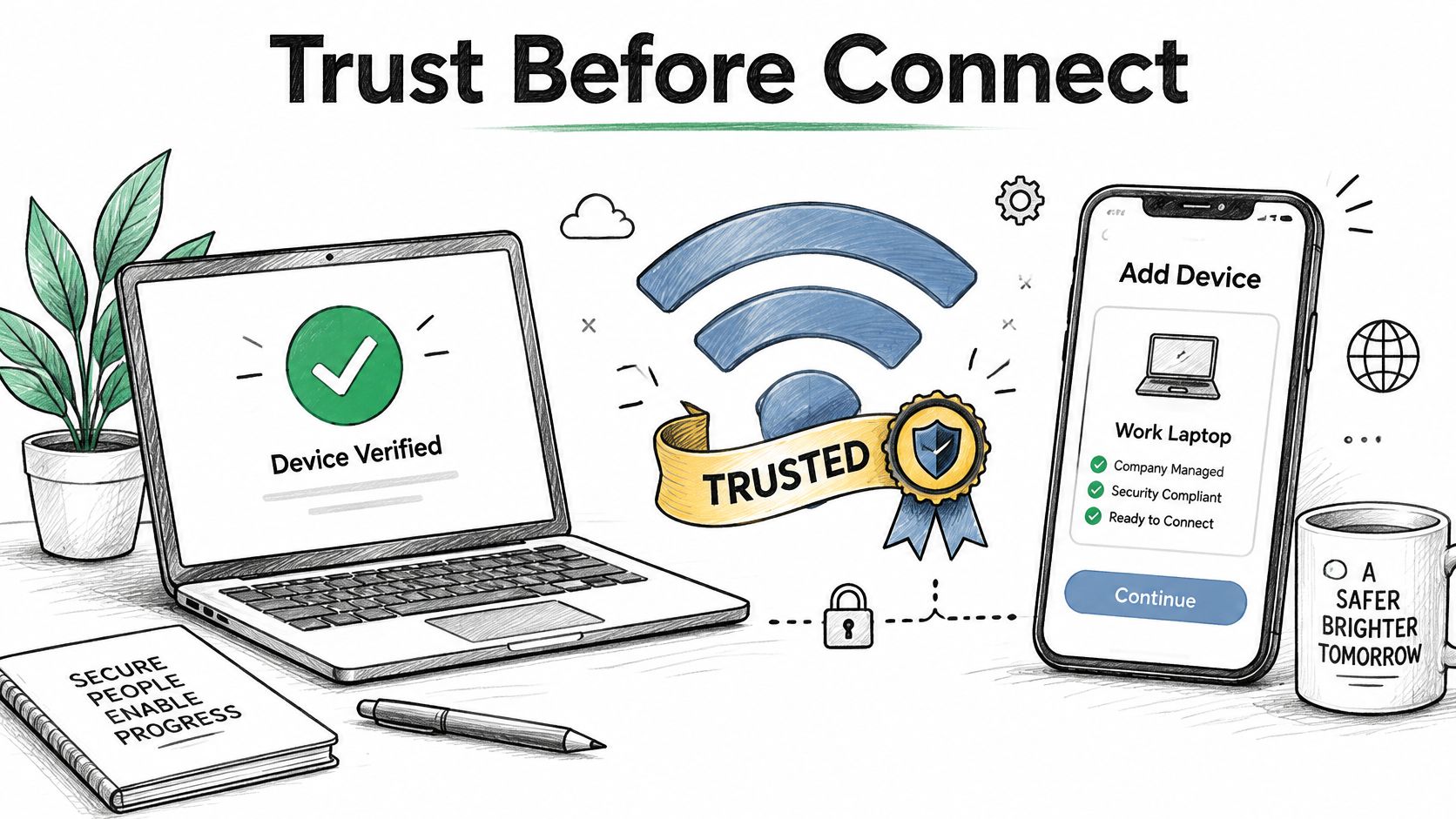
Most Okta Wi-Fi failures that reach a help desk aren't MFA failures. They're trust failures. The device doesn't trust the RADIUS server certificate, the 802.1X profile names the wrong EAP method or server, the client certificate hasn't arrived, or the user hasn't enrolled the factor the policy requires. Okta can evaluate identity correctly while the device never gets far enough to ask.
The enrolment point is documented, not theoretical. The Okta RADIUS application documentation states that EAP-TTLS supports password and passcode authentication while EAP-TTLS does not support enrollment, so authentication can fail when users aren't already enrolled in the required factor. Okta's Meraki troubleshooting also identifies an invalid or untrusted certificate and incorrectly deployed 802.1X profiles as causes of failed connections. Enrol first. Connect second.
Compare the Two EAP Choices Honestly
| Method | Credential sent | Enrolment before first connect | Where it fits | Failure to plan for |
|---|---|---|---|---|
| EAP-TTLS with password or passcode | Okta password or passcode inside a TLS tunnel | Required, because EAP-TTLS does not support enrolment | Mixed or unmanaged devices with enrolled users | Users not yet enrolled in the factor cannot connect |
| EAP-TLS with MDM-issued certificate | Client certificate issued over SCEP | Required, with the certificate pushed by the MDM | Managed corporate devices at scale | An expired server or client certificate removes access at a whole site |
EAP-TTLS keeps passwords in the design. They're exposed to phishing, reuse, help desk resets, and awkward challenge handling on a Wi-Fi supplicant. EAP-TLS removes the password from the wireless exchange and gives mutual authentication, but it moves the work into your certificate authority, SCEP issuance, renewal, and revocation pipeline. Neither is free. You're choosing where the operational burden lives.
Build the Lifecycle Most Guides Skip
- Choose the certificate authority: Decide which CA signs the RADIUS server certificate and which CA issues client certificates. Don't mix them up in the profile, and don't let a public server certificate expiry surprise you.
- Schedule renewal early: Renew the server certificate well before expiry, push the new trust anchor while the old one still works, and confirm devices validate the expected server name.
- Push profiles through the MDM: Use Intune, Jamf, or your existing MDM to deliver the SSID, EAP type, trusted CA, server name, and SCEP certificate. Manual installation doesn't scale and can't be audited.
- Order onboarding before enforcement: Give devices a temporary onboarding path, confirm the profile and certificate landed, then enforce the staff SSID. A device with no trust can't use the staff network to fetch its trust.
- Plan revocation and recovery: Define what happens when a device is lost, a certificate is revoked, a CA changes, or the MDM profile is removed. Test reissue on a spare device.
Run a test matrix before any site changes. Test Windows, macOS, iOS, and Android, each as managed and unmanaged, on first connect, reconnect, roaming between access points, and after a simulated certificate renewal. Include one unenrolled user and one device with the profile removed.
Say a profile push fails without any warning at one branch on Friday. On Monday, every managed device at that location rejects the server certificate while headquarters, which received the profile, works fine. Okta policy hasn't changed. The trust delivery has. That scenario is why profile reporting belongs in your go live criteria, not in a post incident review.
How to Set Up the Okta RADIUS Agent Step by Step
Start with the request path, because it tells you where to look when a login fails. The controller sends a RADIUS request to the Okta RADIUS Server Agent, the agent calls Okta APIs, Okta evaluates policy, an optional MFA challenge returns through the network device, and the agent sends Access-Accept or Access-Reject back to the controller. Each hop can fail without the others being broken.
The deployment sequence below follows the model in Okta's network access server guide, which positions the agent between the network access server and Okta policy evaluation over UDP port 1812. Build it in this order, in a lab, with packet and agent logging available from the first test.
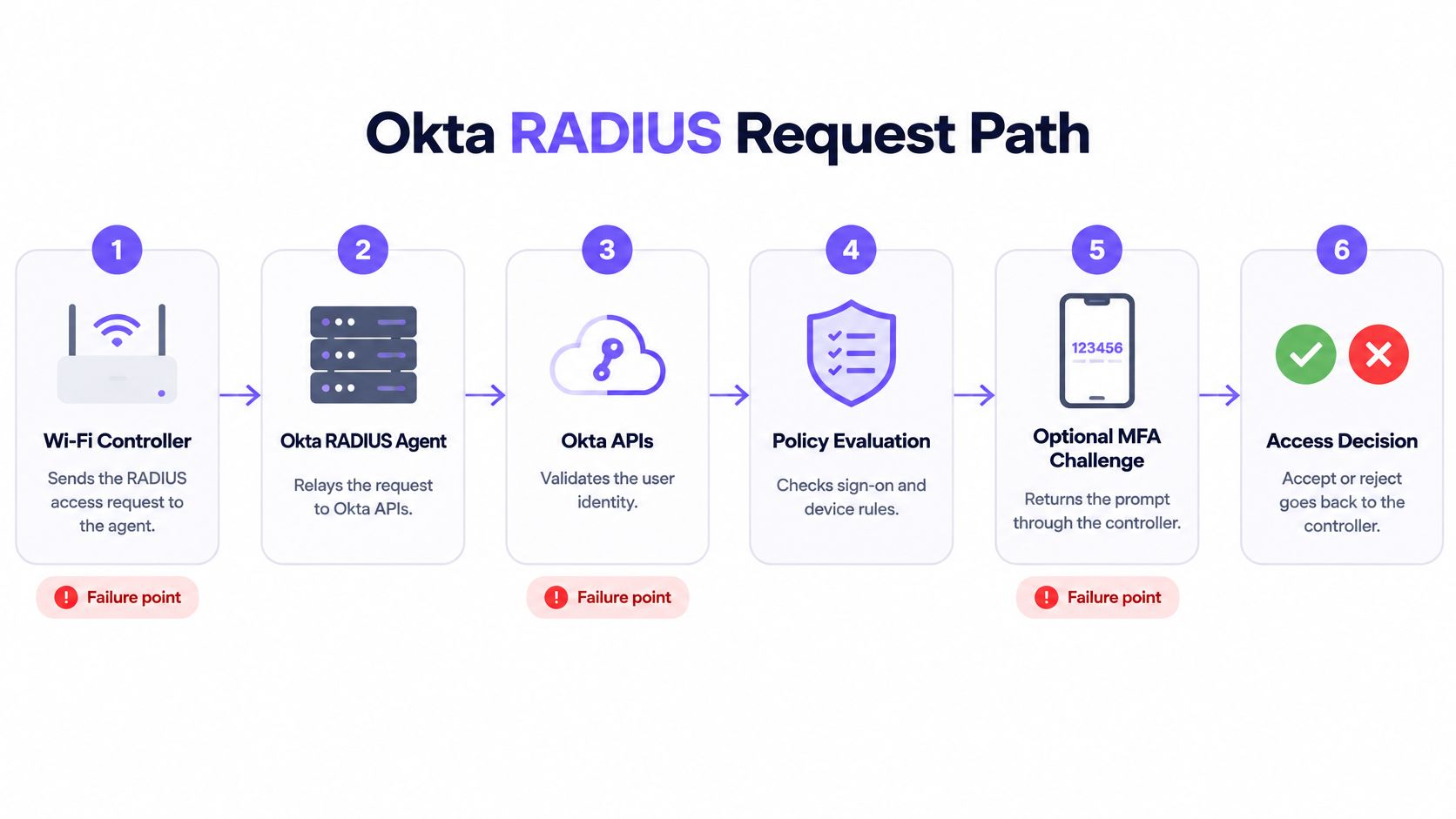
Build the Lab Path in Order
- Install the agent as a service. Install the Okta RADIUS Server Agent on a Windows or Linux host that can reach both the wireless controller and Okta. Don't bury it on a workstation that sleeps, patches unpredictably, or sits behind an undocumented firewall rule. The usual mistake is proving Okta reachability from the server console but never proving controller to agent reachability.
- Create the RADIUS application in Okta. Create the application, note the settings the agent needs, and keep the name tied to the SSID and site scope it serves. Vague app names make later log searches slow. Don't reuse a VPN RADIUS app for Wi-Fi just because both speak RADIUS.
- Configure the controller as the RADIUS client. Point the wireless controller or network access server at the agent IP address, set UDP 1812, and enter a matching shared secret on both ends. Type the secret, don't paste it from a chat message that may add a trailing space. A secret mismatch often looks like a bad password at the client.
- Restrict the source. Limit the client source IP or Okta network zone to controller addresses only. This stops arbitrary internal hosts from sending authentication requests to the agent. The common error is allowing the management subnet during testing and never narrowing it.
- Assign the right Okta groups. Assign the RADIUS application only to groups that should get this SSID. Group assignment is your coarse staff, contractor, and administrator boundary. Don't assign the whole company and promise to fix segmentation later with firewall rules nobody has written.
- Test accept and reject. Connect a lab client with a test account inside the assigned group, then test the same account after removing it. You need both results in the controller log and the Okta log. Testing only success proves nothing about revocation.
- Prove the challenge behavior. If policy requires MFA, confirm the specific client supplicant and controller can present and return the challenge within their timeouts. Many can't do this cleanly. If the prompt never appears, don't solve it by weakening policy in production before you understand the protocol limit.
Before you tune anything else, watch one complete lab authentication and compare each hop with your logs.
For the Meraki variant, the client supplies an Okta username and password under Okta's documented 802.1X EAP configuration. Verify certificate trust and the deployed profile on the test client before you keep changing SSID settings. An invalid certificate or wrong profile will defeat a correct controller configuration, so push the profile through the MDM rather than installing it by hand.
If your design needs EAP methods or scale that an on premises agent handles poorly, compare that constraint with a managed RADIUS as a service layer before you multiply agent servers across sites. Whatever you choose, keep a separate emergency administrator path that doesn't depend on the agent, Okta APIs, or the MFA service. You'll need it during the first certificate or WAN incident, not after it.
Don't promote a configuration because one laptop connected once. Promote it when accept, reject, group removal, timeout, and agent restart all behave the way you documented.
Set Conditional Access and Device Posture Rules
Put each control in the layer that can enforce it. Okta decides who the user is, which groups they belong to, and which factor policy applies. The MDM decides whether the device is enrolled and compliant and delivers its certificate and Wi-Fi profile. The RADIUS agent or controller turns those inputs into Access-Accept or Access-Reject and applies the returned VLAN or role.
Group assignment to the RADIUS application decides who may join the SSID at all. The factor policy on that application decides whether MFA is required, but the controller and supplicant still have to carry the challenge. Device posture doesn't come from a password. It comes from MDM enrolment and the presence of a valid certificate, so an unmanaged personal device shouldn't land on the staff network just because its owner knows valid credentials.
Directory group membership can also drive placement after acceptance. Map each group to one VLAN or role, return that attribute on Access-Accept, and keep the mapping small enough to audit. Source restriction belongs in the Okta network zone and on the agent. Only controller addresses should be valid RADIUS sources. Broader network access decisions should stay consistent with your wider network access control solutions, not become a set of SSID specific exceptions.
Run Three Checks Before Rollout
- Revocation test: Remove a real test account from its assigned group and confirm the next connection is rejected. Then disable the account and repeat it.
- Posture test: Try an enrolled compliant device, an enrolled noncompliant device, and an unenrolled device. Confirm only the first reaches the staff VLAN.
- Audit document: Record every group to VLAN mapping, the owner of each group, and the separate guest rule set in one document your help desk can read.
Teams tightening these boundaries across identity, endpoints, and network devices may also find IT protection from Wisely useful as broader background. For this rollout, keep the test narrow. If a control can't be shown changing an accept, reject, or VLAN in the lab, it isn't configured yet.
Troubleshooting Failed Okta Wi-Fi Logins
Start with the symptom users report most. A client that never shows a credential prompt usually isn't waiting on Okta. It's missing its 802.1X profile, it's offering the wrong EAP method, or it's rejecting the server certificate before credentials are sent. Check the device profile and controller EAP settings before you reset anyone's password.
Work one layer at a time. Confirm the agent service is running, read the controller reject reason, then change one setting and retest with the same device and account. If you edit the secret, profile, group, and certificate together, you'll fix the login without learning which fault will return at the next site.
Match the Symptom to the First Fix
| Symptom | Likely cause | First fix |
|---|---|---|
| Client never shows a credential prompt | 802.1X profile missing or EAP type mismatched | Redeploy the profile and match the EAP method to the controller |
| Authentication times out | UDP 1812 blocked or agent service down | Check the firewall path and agent service status from the controller network |
| Access-Reject with the correct password | Shared secret mismatch or user outside the assigned group | Re-enter the secret on both ends and confirm group assignment |
| Rejects from one controller only | Source IP or network zone excludes that controller | Compare the controller address with the allowed zone |
| MFA prompt never appears | Client or controller cannot display the challenge | Test another client and confirm the challenge path in the lab |
| Works on Windows, fails on iOS | Certificate trust or profile mismatch | Check the server certificate chain and profile trust settings on the failing OS |
| Working site fails after a set date | Server certificate has expired | Renew the certificate and push the updated trust profile |
Separate minute fixes from fleet fixes. Re-entering a shared secret, correcting a group, adding a controller source address, or restarting the agent can close a lab fault quickly. Renewing a server certificate, rebuilding a trust profile, and waiting for thousands of devices to check in with the MDM can take days. Don't promise a same day site recovery for a trust chain problem.
Say Windows laptops reconnect after a certificate change but iPhones fail across one building. That pattern points away from Okta policy, because the same accounts succeed elsewhere. Compare the iOS profile's trusted CA, expected server name, and certificate chain against a working Windows device. One OS may have cached or received the new trust while the other hasn't.
Escalate with evidence. If one test cycle doesn't change the reject reason, stop editing production settings, take the failing device back to the lab SSID, and compare its association, EAP exchange, RADIUS result, and assigned VLAN against a working device. Bring the timestamps with you. Guesswork across four systems wastes the change window.
Confirm the Pilot Before You Expand Sites
A successful Okta login isn't a working Wi-Fi session. The pilot has to measure the complete transaction, from association to usable network access, because users don't care which hop returned the error. The Okta RADIUS best practice flow describes a challenge flow involving up to eleven logical steps, including credential forwarding, API validation, MFA challenge presentation, challenge response, second validation, and the final RADIUS decision. Instrument the chain accordingly.
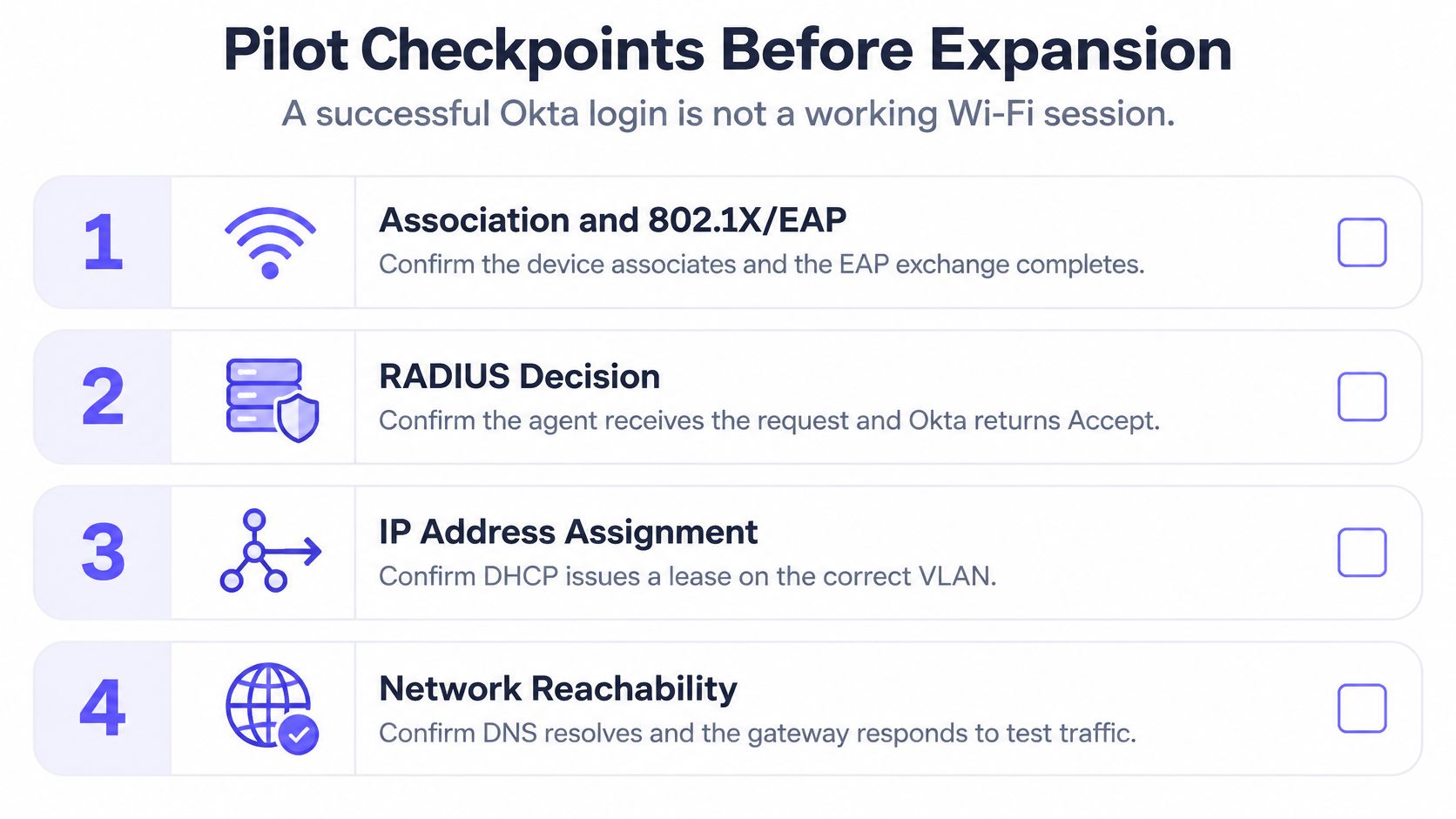
Use four checkpoints for every pilot device. First, association and 802.1X/EAP negotiation at the access point. Second, RADIUS request receipt at the agent. Third, Okta policy and factor response. Fourth, the final Access-Accept or Access-Reject at the controller, followed by the correct VLAN. Split first attempt success, median and 95th percentile authentication latency, timeout rate, repeat prompts, and rejection causes by device OS, site, SSID, controller model, and factor type.
Okta publishes no universal Wi-Fi authentication success benchmark, so set a local acceptance rule and defend it. For example, require at least 99% first-attempt completion in the controlled pilot, zero unexplained rejects, and no authentication timeout beyond your roaming budget. Treat those as your own pilot thresholds, then validate them under peak concurrency and a WAN failure test. A login that works for five lab users at noon may fail when a shift starts and hundreds of devices reconnect together.
Your evidence needs to be queryable across the estate. Purple Access provides an authentication log that shows every accept and reject, with identity, device, MDM enrolment state, method, access point, SSID, site, VLAN, role, reason and timestamps, in one estate wide query. That level of detail also matters for segmentation evidence, especially because PCI DSS v4.0.1 Req 2.3.2 requires wireless keys to change when anyone who knows them leaves, which a shared key makes impractical. Keep the underlying Wi-Fi network design in view, since authentication can't rescue weak VLAN boundaries.
Expand only on a clear go decision. Every OS and factor type in scope meets all three acceptance conditions, rejects have named causes, and the emergency administrator path has been tested with the agent stopped. If any condition fails, stay in pilot and fix that layer. Adding sites multiplies an unresolved fault.
If your Okta Wi-Fi authentication design has outgrown shared passwords, fragile agent servers, or manual certificate work, Purple Access can put guests, staff, and devices on separate identity driven networks using the access points you already own. Bring your controller models, MDM, and group to VLAN plan, and we'll help you validate a lab first rollout before it reaches a production site.